Différences entre versions de « Add a media »
Sauter à la navigation
Sauter à la recherche
| Ligne 1 : | Ligne 1 : | ||
To add a media (image, video, sound, etc), click on the [[File:ButtonAdd.gif]] button on top of the media panel (left panel). | To add a media (image, video, sound, etc), click on the [[File:ButtonAdd.gif]] button on top of the media panel (left panel). | ||
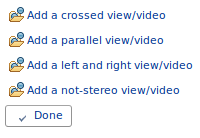
| − | + | Click on one line of the open dialog to choose the type of media you want to add (stereo in a single file, stereo in two files, 2D image, etc): | |
[[File:OpenMediaDialog.png|center]] | [[File:OpenMediaDialog.png|center]] | ||
| + | |||
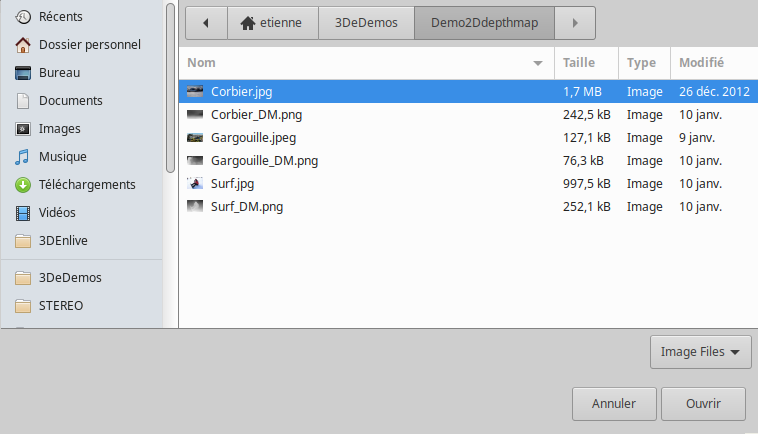
| + | Choose a file on your disk: | ||
| + | |||
| + | [[File:OpenMediaFileDialog.png|center]] | ||
| + | |||
| + | Click on the "Open" button. | ||
| + | |||
| + | If two files need to be opened, do this twice. | ||
| + | |||
| + | The media should appear in the open dialog box and in the media panel (left panel): | ||
Version du 10 février 2021 à 14:21
To add a media (image, video, sound, etc), click on the  button on top of the media panel (left panel).
Click on one line of the open dialog to choose the type of media you want to add (stereo in a single file, stereo in two files, 2D image, etc):

Choose a file on your disk:

Click on the "Open" button.
If two files need to be opened, do this twice.
The media should appear in the open dialog box and in the media panel (left panel):